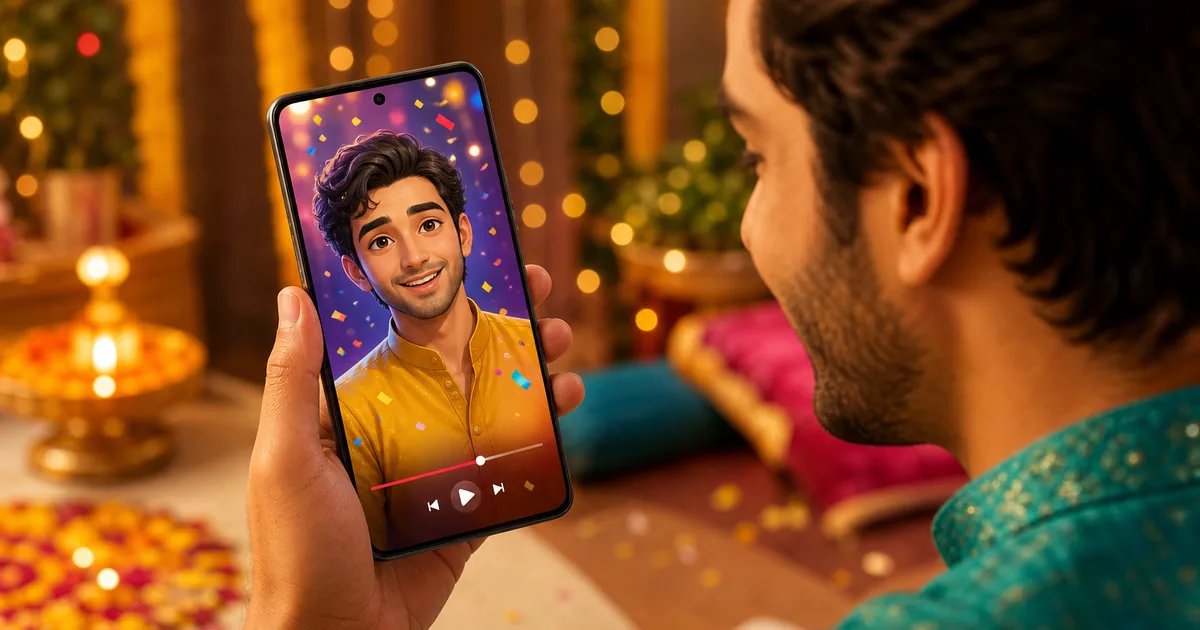
Want to animate photo to video for Reels, Shorts or WhatsApp Status without editing skills? On Glymo, you can turn a single picture into a short AI video: open Image to Video, upload your photo, write a simple prompt for style and motion, choose a duration, and generate. It’s perfect for birthdays, weddings, festivals, travel portraits and small business teasers. If you’ve been searching “how to animate photo to video,” “animate photo to video AI,” “how can I animate a picture for free,” or “how to convert normal image to animated image,” this guide shows you exactly how to do it with clear steps, tips and ready-to-copy prompts.
What does “animate photo to video” mean?
- You take one still image and turn it into a short video clip with subtle motion, camera moves and ambience.
- Great for Instagram Reels, YouTube Shorts and WhatsApp Status when you only have one good photo.
- Ideal for birthdays, anniversaries, weddings, festival wishes (Diwali, Holi, Eid, Navratri, Christmas, New Year), product teasers and before–after reveals.
Quick start: Animate a photo to video on Glymo
Here’s how to do it with Glymo’s Image to Video tool.
-
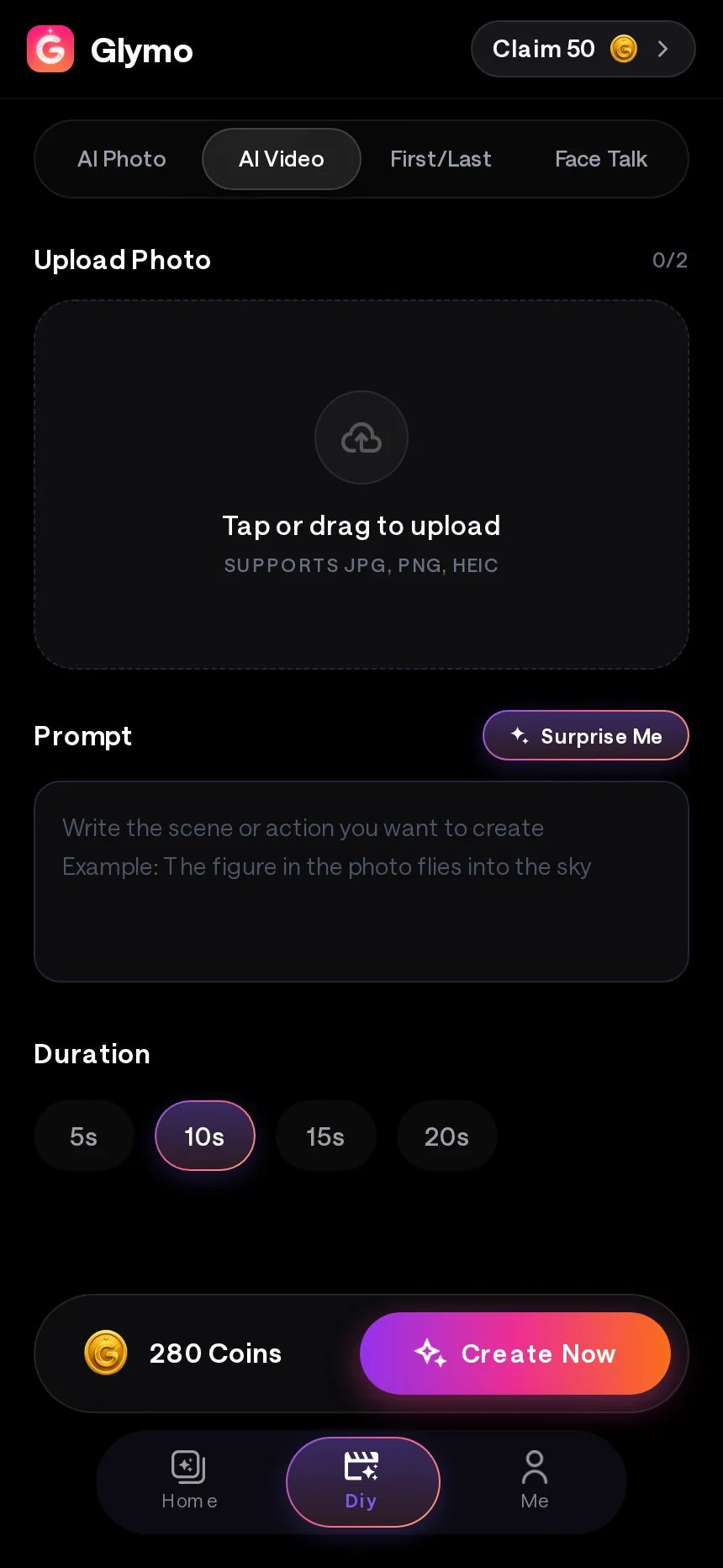
Open the tool: Go to Glymo AI Studio and choose Image to Video (animate a photo) on web or in the Glymo app.
-
Upload Photo: Tap Upload Photo and pick a clear image you have permission to use. For people, front-facing with good lighting works best.
-
Prompt: In Prompt, describe the style, setting, lighting and motion in one or two short lines.
-
Duration: Choose a duration for your video.
-
Generate: Tap Generate. Preview the result, then download it from My Creations and share on Reels, Shorts or Status.
Always upload only your own photos or ones you have clear permission to use.
Best photos for smooth animation
- Use a single main subject (one person or one product). Avoid group photos for this tool.
- Faces: front-facing, eyes open, minimal motion blur, no heavy shadows.
- Simple backgrounds are easier for clean motion. Crop out distractions before upload.
- Higher-resolution images help the AI keep details.
What to write in the prompt (simple formula)
Use this quick formula: Subject + Style + Setting/Lighting + Motion.
Examples you can copy:
- “Portrait of a woman, cinematic warm tones, soft candlelight, slow push-in, floating petals.”
- “Close-up coffee cup, moody café lighting, light sweep across cup, gentle parallax.”
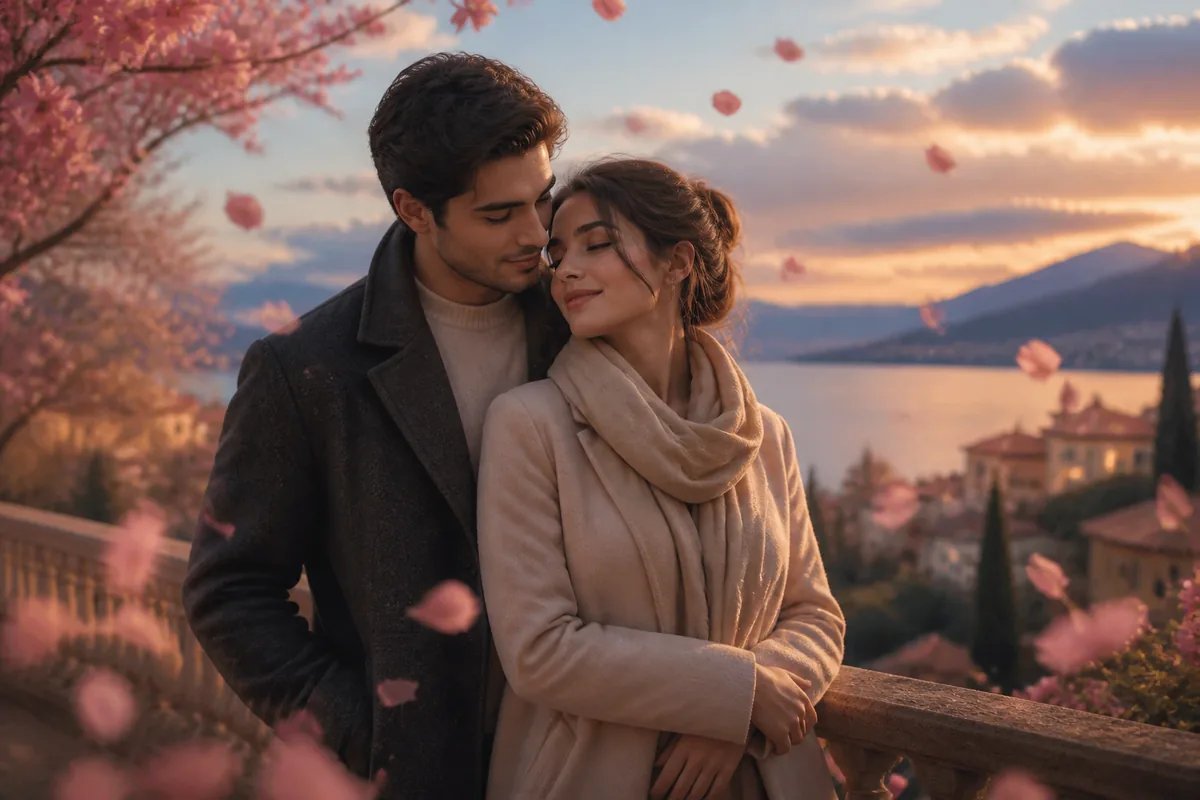
- “Couple portrait, dreamy bokeh, sunset glow, subtle camera orbit, petals drifting.”
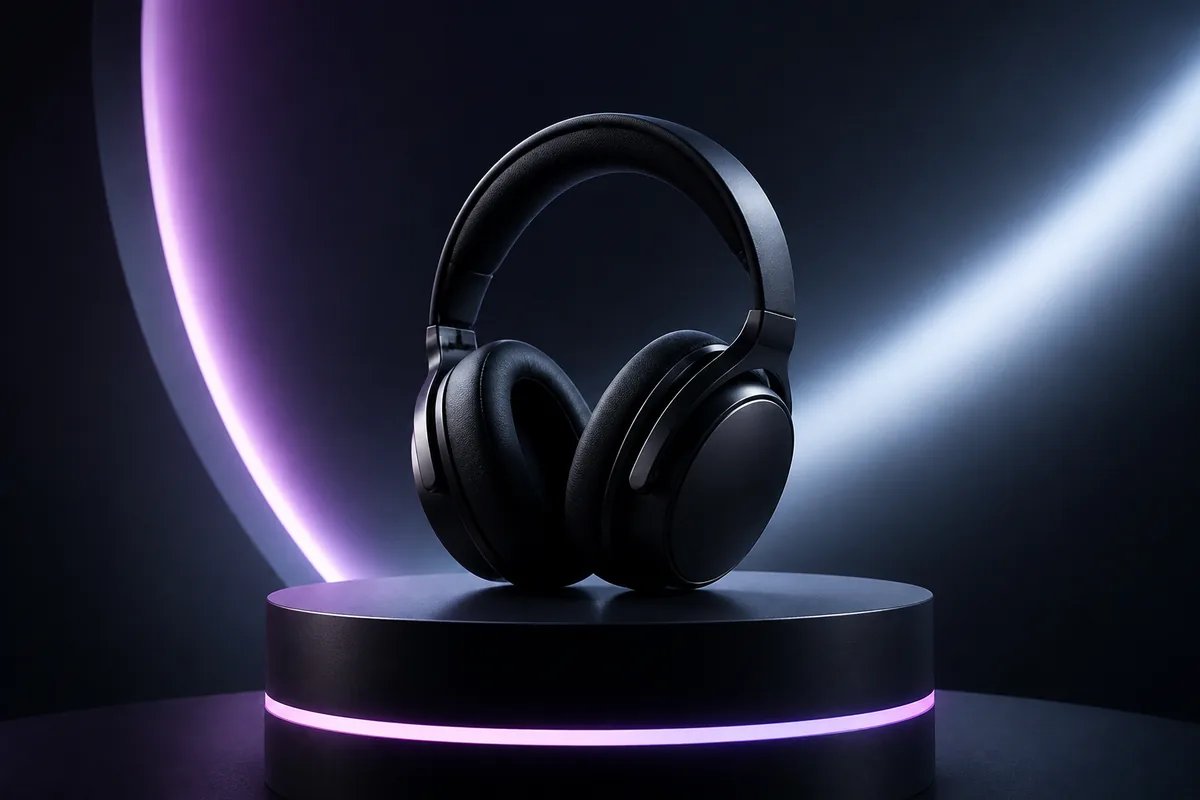
- “Men’s sneaker product shot, neon accents, reflective floor, slow dolly-in, light flicker.”
- “Traditional outfit portrait, festive golden tones, diya glow, sparkles, slow push-in.”
Ready-to-copy prompts for popular Indian moments
Copy, paste and tweak names/colours to fit your photo. Keep prompts short and specific.
Birthdays & Anniversaries
- “Birthday portrait, warm fairy lights, falling confetti, slow push-in.”
- “Birthday cake close-up, soft bokeh, sparkles and gentle camera tilt.”
- “Couple anniversary photo, candlelight ambience, petals drifting, subtle parallax.”
- “Best friend birthday portrait, pastel party colours, confetti burst, slow zoom.”
- “Anniversary portrait, golden hour tones, floating hearts (subtle), slow push-in.”
Weddings & Pre-weddings
- “Pre-wedding couple, cinematic tones, rose petals drifting, slow orbit.”
- “Bride portrait, soft warm light, delicate sparkle, gentle push-in.”
- “Groom in sherwani, vintage film look, slow parallax, subtle grain.”
- “Couple in traditional attire, diya glow, light leaks, slow dolly-in.”
- “Haldi portrait, vibrant yellows, colour dust shimmer (subtle), camera tilt-down.”
Festivals (Diwali, Holi, Eid, Navratri, Christmas, New Year)
- “Family portrait, Diwali diya glow, floating sparks, warm golden palette, slow push-in.”
- “Smiling portrait, Holi colour powder burst, playful but subtle camera shake.”
- “Eid outfit photo, moonlight and lantern ambience, soft shimmer, gentle parallax.”
- “Navratri garba look, festive reds and golds, dandiya sparkle (subtle), slow orbit.”
- “Christmas portrait, cozy fairy lights, snowfall effect (soft), slow zoom.”
- “New Year selfie, neon confetti, party lights flicker, steady push-in.”
Travel & Cinematic Portraits
- “Solo portrait in the hills, sunrise haze, lens flare, slow push-in.”
- “City street photo, neon cyber look, gentle parallax, light reflections.”
- “Beach sunset portrait, warm pastel sky, dreamy bokeh, slow orbit.”
- “Monsoon street shot, gentle rain ambience, moody blue tones, slow dolly-in.”
- “Heritage site photo, vintage film grain, tilt-up from feet to face (subtle).”
Small business promos (cafes, salons, boutiques, freelancers)
- “Coffee cup product close-up, studio light sweep, slow push-in, steam glow.”
- “Salon before photo, clean white backdrop, soft spotlight sweep, gentle parallax.”
- “Boutique dress on mannequin, elegant warm tones, subtle sparkles, slow orbit.”
- “Handmade jewellery close-up, reflective highlights, light flicker (soft), steady push-in.”
- “Freelancer logo on card, neon edge light, depth haze, slow tilt-down.”
Step-by-step with examples (Glymo Image to Video)
Follow these examples to see exactly where to click: Upload Photo, write Prompt, pick Duration, Generate, then download from My Creations.
-
Example 1: Birthday portrait to confetti reel
- Upload Photo: Your friend’s birthday portrait (front-facing, good light).
- Prompt: “Birthday portrait, warm fairy lights, falling confetti, slow push-in.”
- Duration: Pick a short duration. Tap Generate. Download and post to Reels or Status.
-
Example 2: Product photo to dynamic teaser
- Upload Photo: Your café’s latte close-up on a clean table.
- Prompt: “Latte close-up, studio light sweep, gentle parallax, cinematic tones.”
- Duration: Choose a short duration. Tap Generate. Perfect for a quick teaser.
-
Example 3: Couple photo to romantic cinematic clip
- Upload Photo: Couple portrait from a pre-wedding shoot.
- Prompt: “Couple portrait, dreamy bokeh, soft candlelight, floating petals, slow orbit.”
- Duration: Pick a short duration. Tap Generate. Share on Shorts or Status.
Photo tips: Get cleaner AI motion and fewer glitches
- Keep one clear subject and a simple background to avoid bending and blurs.
- Front-facing faces with even light work best; avoid group photos for this tool.
- Crop out random text or clutter before uploading; higher-resolution images help.
- For products, shoot on a clean surface with soft side or top lighting.
Prompt recipes: Camera moves, ambience and style presets
Mix and match these in your prompt:
- Camera moves: slow push-in, gentle parallax, dolly left-right, subtle orbit, tilt-up, tilt-down.
- Ambience: floating petals, diya glow, falling confetti, gentle rain, sparkles, neon flicker, light sweep.
- Styles: cinematic warm tones, dreamy bokeh, vintage film, neon cyber, festive golden palette, moody café.
- Motion limits: ask for “subtle,” “gentle,” or “slow” movement to reduce distortions on faces and fine details.
Troubleshooting: Fix common animation issues
- Face warping: Use a clearer, front-facing photo with good light. In your prompt, pick “subtle push-in” instead of big movement.
- Hands or jewellery distort: Avoid asking for finger/hand movement. Keep motion simple (camera-based, like push-in or parallax).
- Background bending too much: Replace “fast zoom” with “subtle camera push-in” or “gentle parallax.”
- Text on T-shirts or boards: AI may morph text; avoid prominent text or keep it minimal in the frame.
- Old or scanned photos: Clean or upscale in any editor first. Then use gentle motion requests.
When to use other Glymo tools instead
- Before–after or glow-up from one image to another? Try First and Last Frame transition videos.
- Want a person dancing from a single photo (one adult person)? Use Make Me Dance (photo to dance video).
- Need a talking avatar for invites or quick announcements? Pick Face Talk talking avatar.
- Want to restyle your photo before animating it? Use Image to Image (AI photo editing with a prompt), then animate the new look in Image to Video.
Ideas that work right now (Reels, Shorts, Status)
- Birthday: one portrait + “confetti burst, slow push-in, warm bokeh.”
- Anniversary: couple photo + “soft candlelight, petals drifting, gentle parallax.”
- Diwali: family photo + “diya glow, floating sparks, golden tones.”
- Holi: smiling portrait + “color powder burst, playful camera shake (subtle).”
- Small business: product close-up + “studio spotlight sweep, light reflections, cinematic push-in.”
- Freelancers: logo-on-product shot + “neon flicker, slight tilt, depth haze.”
Frequently asked questions
How do I animate a photo to video on my phone?
Open Image to Video (animate a photo) in your mobile browser or the Glymo app. Upload a clear photo, add a short prompt for style and motion, choose the duration, tap Generate, and download from My Creations. If you ever wondered “how do I turn a picture into an animation,” this is the simplest path.
What kind of photos work best for AI animation?
One person or one product with a clean background works best. Faces should be front-facing, well lit, and sharp. Avoid group shots and heavy shadows. For products, use a tidy setup and soft side lighting to get neat reflections and gentle parallax.
Can I animate a picture for free and without a watermark?
Many people search “animate photo to video AI free,” “free animate image to video,” “animate photo to video free,” or “how to animate a picture for free.” Glymo uses a coin-based system and offers different plan options; see Pricing and plans for details. Create responsibly using photos you have permission to use.
How do I avoid weird face or hand distortions in AI videos?
Start with a clear, front-facing portrait and reduce aggressive motion in your prompt. Prefer camera moves like “subtle push-in” or “gentle parallax” instead of asking fingers or facial features to move. Keep jewellery, hands and text minimal in the frame. If the background bends too much, switch “fast zoom” to “slow push-in.”
How can I animate a picture for free or convert a normal image to an animated image?
If you’re exploring “how can I animate a picture for free” or “how to convert normal image to animated image,” try Glymo’s Image to Video (animate a photo). Upload a photo you have permission to use, write a short prompt, choose a duration, and generate a short AI video. For plan details, check Pricing and plans.
Create your animated photo video now
Ready to post your next Reel, Short or Status? Open Image to Video (animate a photo), upload a photo you have permission to use, add a short prompt and generate. Share your clip on Instagram, YouTube or WhatsApp—quick and simple.
Helpful links for sharing:
- See how to post Reels on the Instagram Help Center.
- Learn about Shorts on the YouTube Help Center.